Purchase orders for bars and food vendors, without the paperwork
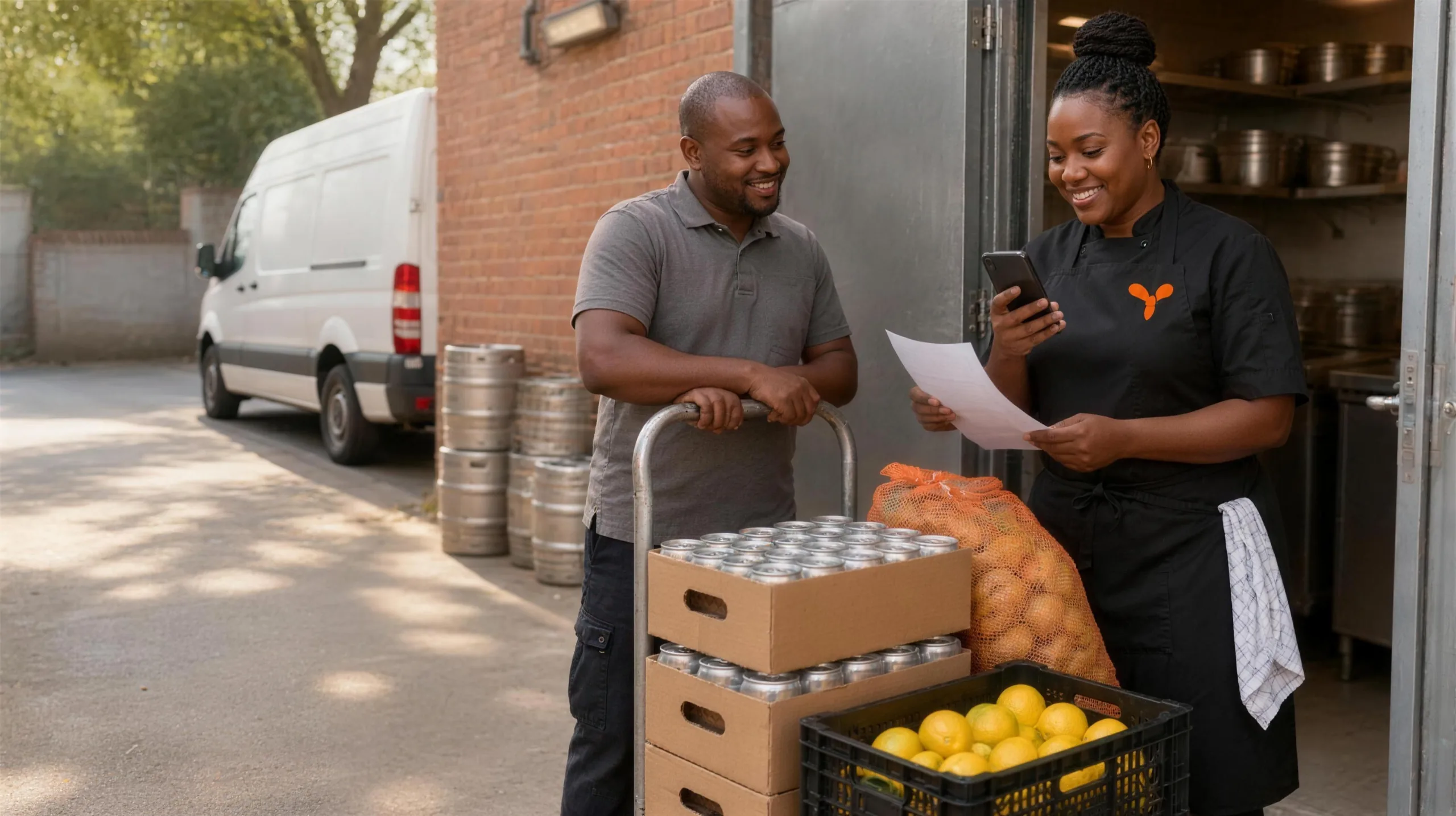
Most small kitchens and bars order stock the same way. Someone opens the fridge on a Thursday night, counts what is left, sends the supplier a voice note and hopes they remember what was asked for when the bakkie pulls up on Friday. The invoice goes in a drawer. Nobody checks whether the case of tonic that arrived is the one that was ordered, or whether the price of chips went up again.
That works until it does not: the weekend you run out of buns at 12:30, or the month the margin report looks wrong and nobody can say why. Purchase orders in YesChef are built to fix exactly that, and nothing more. It is not procurement software. It answers three questions: what do I need to order, what did I order from whom, and what actually arrived at what price.
Start from what is running low
If you already track stock in YesChef, it knows what you have. Every sale takes its recipe off the shelf, so the count goes down as you trade. Give each item a preferred supplier and a pack size, like a case of 24 cans, a 5 kg bag of chips or a 30-litre keg, and the Purchase orders page groups everything that is low by supplier.
Tap Create order next to a supplier and the low items fill in, with a suggested number of packs. The suggestion allows for stock already on order, so an item you ordered on Monday that has not arrived yet does not get ordered twice on Wednesday. Change any quantity, add anything else you need and save it as a draft if you want to check the cold room first.
Send it the way your supplier already works
Most suppliers in South Africa take orders on WhatsApp, and plenty of reps still prefer a phone call. So YesChef sends from your phone, not from ours. Choose WhatsApp or email and the order opens in your own app, written out line by line, ready to send to your rep. You can also copy it to paste anywhere, or mark it as ordered by phone if you called it through. Either way the order is recorded with its date, its supplier and every line.
Receive it at the back door
The receive screen is made for a phone in one hand while the driver waits. It opens with everything still outstanding already filled in, so you only change what is different. Two cases short? Type the real number. An extra box of serviettes you did not ask for? Add it. The running total is there to compare with the invoice before the driver leaves, and there is space for the invoice number.
If something is short, you decide in one tap: keep the rest on order for the next delivery, or close the order. Deliveries without an order, like the rep who drops off a crate of lemons on the way past, can be received too.
- Stock goes up the moment you save, and anything that had sold out on your menu comes back on sale.
- Your cost prices update from what you paid, so recipe costs and margin reports stay true.
- YesChef warns you when a price has moved since you last bought the item.
- Every delivery records who received it.
VAT handled the way your bookkeeper wants it
If you are not VAT registered, you just enter what you paid. If you are, every buying price is shown and compared excluding VAT, because you claim the VAT back. Many supplier invoices show prices with VAT included, so the receive screen has a switch for that. Type the prices as they appear on the invoice, and YesChef works out the excl. VAT cost for you.
Managers can do it, owners keep control
The person who meets the delivery is often a manager, not the owner, so Purchase orders sits in the Operations part of the console where admins and managers can both reach it. Managers can add suppliers, send orders and receive deliveries. Undoing a delivery and changing an item's buying settings stay with the admin, so nobody can quietly rewrite what arrived. An undo never deletes anything either: it reverses the delivery and puts back the cost the item had before.
Getting started
- Add your suppliers. Name, phone, email and notes are all it asks for, and you can add one from the order screen without leaving it.
- Open the stock items you reorder most and fill in the Buying section: supplier, pack name and pack size.
- Do a stock take, so the counts YesChef suggests from are right.
- Send your next order from the Purchase orders page and receive it when it arrives.
It all runs in the same console that takes your orders and runs your kitchen screen, at no extra cost. The goal is a Friday where the delivery matches the order, the invoice matches the delivery, and the margin report means something.
Put it into practice
Start free, build your menu, and take your first order today.